
From the cover diary staff can be emailed to remind them of a cover assignment.
Permissions required
- Can send email communications
- Can send cover communications to staff ( this requires assigning before any cover message can be sent).
How to send
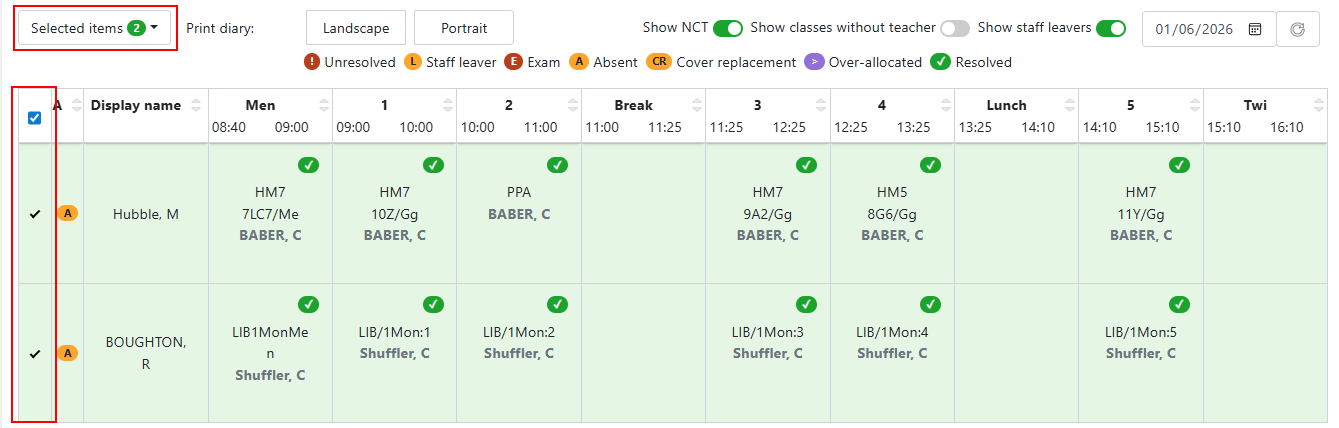
Go to Curriculum > Cover > Cover diary to access the cover diary page. See Cover management article to set cover. Once cover is set select the staff using the tick box to select all or by selecting from the column to the left.
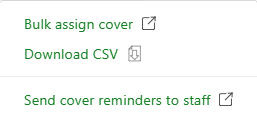
Using 'Selected items' menu then select 'Send cover reminders to staff'. If no rows are selected the message will display as below and this option will be greyed out.
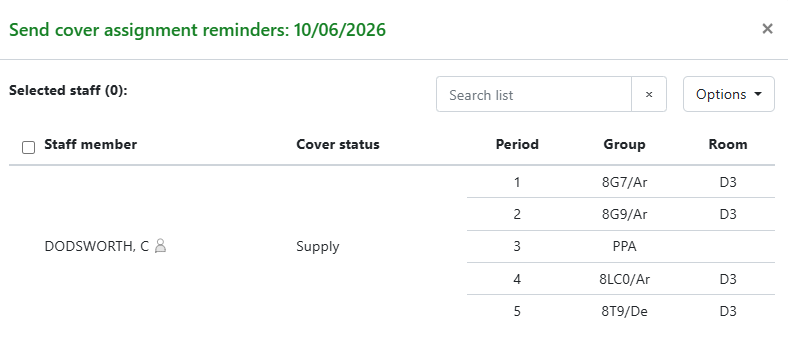
A modal will open to display the staff who are assigned cover including details regarding cover status, group and room. Select the staff in the modal to send the cover reminder and select 'Send reminder'.
A success message will display once the email is successfully sent.

Viewing messages
Go to People > Communications > View Internal messages to view sent messages. From the listing page select the message to view the list of recipients and the content of the emails.
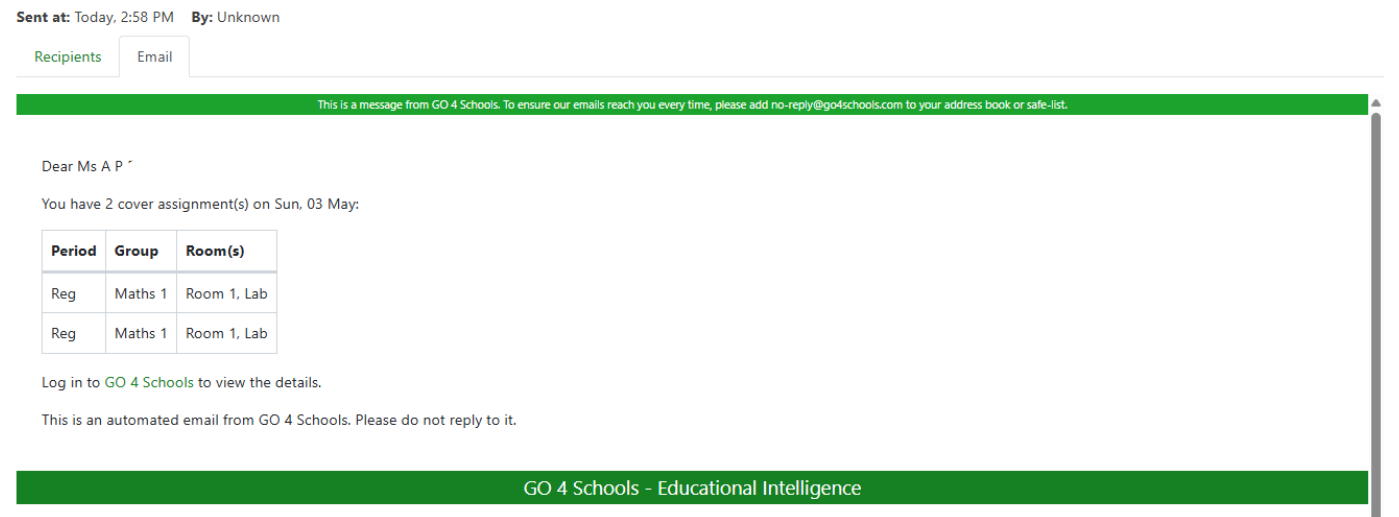 Emails will use the school's header and footer.
Email template
Cover messages use the system template 'Cover assignment reminder' which can be found in People > Communications > Message templates. The email channel is set to default and the SMS and Notifications channels are disabled.
The template tags are tags specific only to these system templates and can be used in the tags list when [overriding the template]
- [[CoverAssignmentsCount]]
- The count of the cover assignments
- [[CoverAssignmentsDate]]
- The date the cover is required
- [[CoverAssignmentsTable]]
- A table consisting of the period, group and room