
If using Enhanced communications schools can send email messages to either all staff or selected staff regarding incomplete take home reports. Messages sent can be reviewed in the internal message page.
Permissions
Required permissions include:
- To send any of these messages, you need to be a report manager or school manager.
- To view any of the staff messages on the internal view messages page, you need to either be a report manager or school manager, or have the 'Can view report communications' permission.
- To manage the related enhanced comms templates, you need to either be a report manager or school manager, or have the 'Can view report communications' permission, or have the 'Can manage reports communication templates' permission.
Sending a message
For details of how to set up reports see article for Managing Take home reports.
Once reports are in progress a message can be sent to staff from the Report Management page: Curriculum > Reports > Manage > 'Select report' then as a Report action select the notify staff button.

 The button is disabled if the email channel has been disabled on the related template, having a tooltip stating that the email channel has been disabled on the system template. The tooltip includes the name of the template, using the overridden name if it exists.
- The button is disabled if there are no staff members with a valid email address.

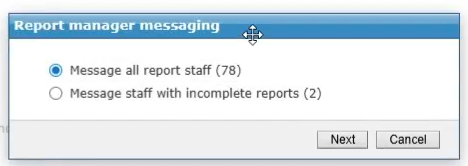
A modal will open with options to:
- Message all report staff which includes all teachers included in the report
- Message staff with incomplete reports, based on the report progress bars where data is missing.
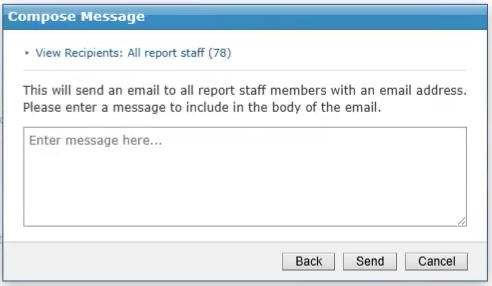
For all report staff the modal opens up a message window for a message to be composed to send to chosen staff.
For staff with incomplete reports the modal will show options to select staff who you need to send a message to.
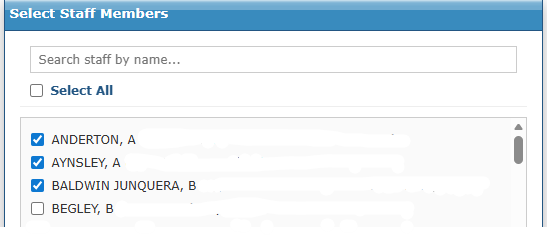
- Selectable list of all the report staff and their email address (if they have one)
- If a staff member does not have an email address, they can not be selected with a tooltip stating the reason why.
- Select all button that:
- If there is at least one visible staff member that is not selected, it will select all staff members that are visible (i.e. staff members that are filtered by the search box)
- If all staff members are selected, it will deselect all staff members
- Search box that:
- Filters list of staff
- If all staff members are filtered out, a No staff members found message will appear

The message can then be composed and sent.
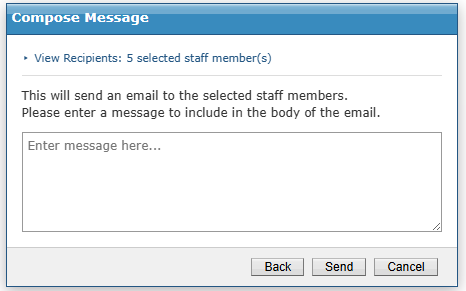
Once the request to the server is complete a staff take home report reminder email is created based on the related template for each of the staff members.
Confirmation of a successful sent message will display.
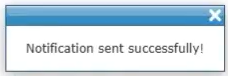
If there is an error i.e. incorrect permissions then an appropriate message will display.
Viewing sent messages
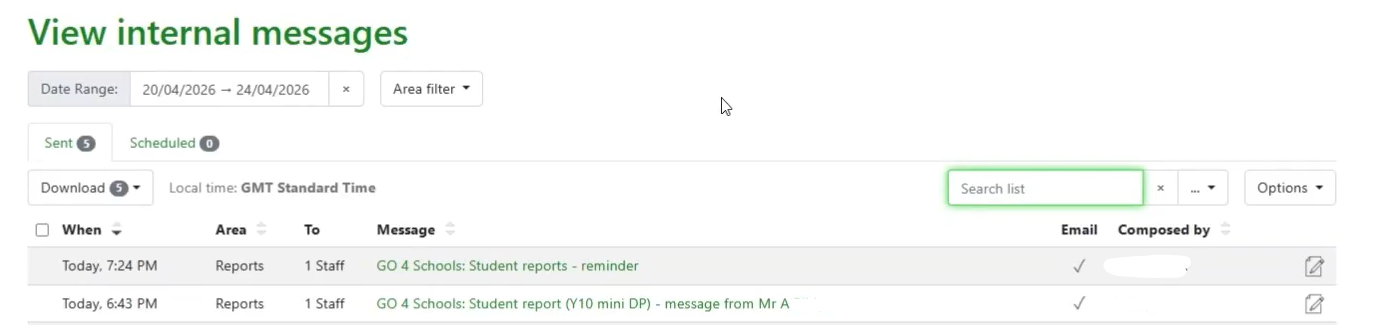
Go to Staff > Communications > View internal messages to access the Internal messaging listing page. This can be filtered by date range and area to view messages.
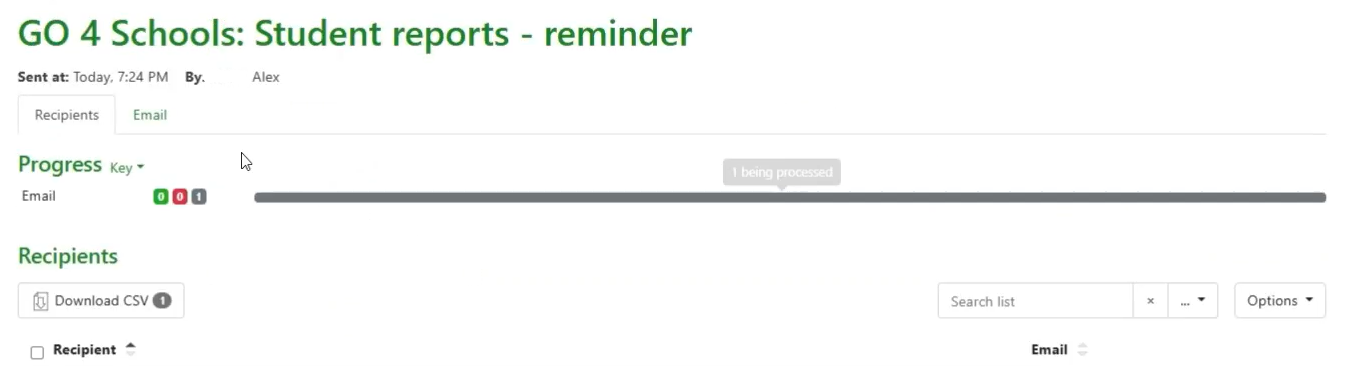
 Clicking into the message will show all the staff who were sent the message and the content of the email.
Internal messages will use the report template set up including headers, footers and email address, see more information in the communications articles.
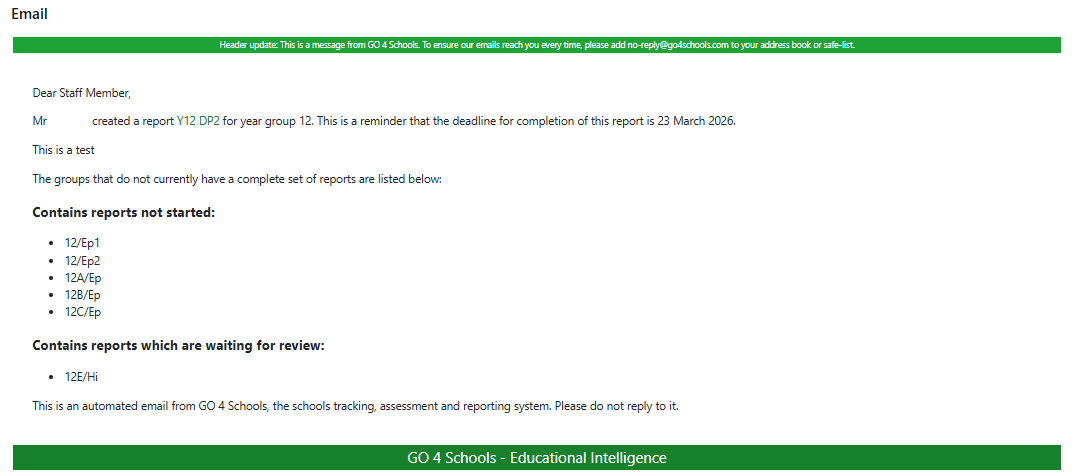
Template message:
- To view the email, you can access it in the internal messages page.
- Email channel is enabled by default until overridden
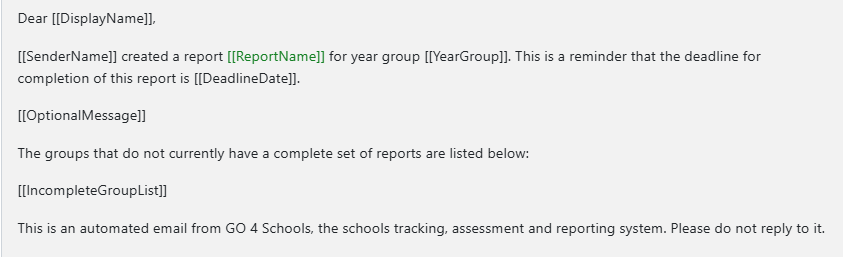
- Emails will have the subject 'GO 4 Schools: Student reports - reminder' unless overridden, with non-recipient tags substituted
- Emails will have the School header and footer.
Emails will have the body found below unless overridden, with tags substituted.
- Notification channel is disabled by default until overridden
SMS
Template
This is the related message template See Enhanced communications templates.
These are tags specific only to these system templates and can be used in the tags list when overriding the template.
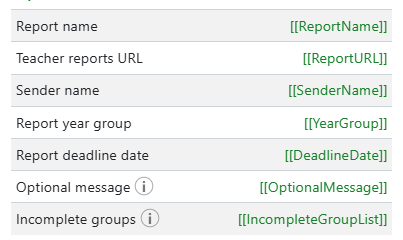
- [[ReportName]] will be replaced by the report's name
- [[ReportURL]] will be replaced by the report's URL
- [[SenderName]] will be replaced by the sender's name
- [[YearGroup]] will be replaced by the report's year group
- [[DeadlineDate]] will be replaced by the deadline date of the report
- [[OptionalMessage]] will be replaced by the message entered in the compose message step if there is one entered
- [[IncompleteGroupList]] will be replaced by the list of groups that are incomplete in the report