
Advanced communications needs to be enabled to schedule messages in the GO 4 Schools MIS. See Setting up MIS Communications. It is important to ensure the time zone is set to send messages in your school's local time. Go to Settings > School settings and contact details > School details tab to adjust the time zone.

Permissions
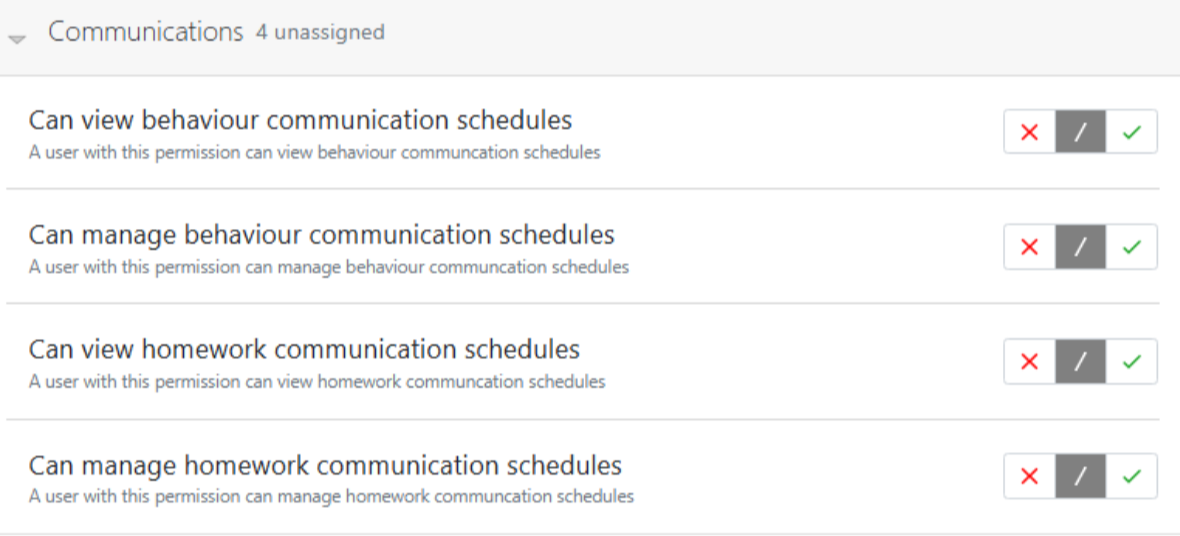
Additional permissions are required to set schedules for messages, these are used to edit the default behaviour and homework messages.
Set up a scheduled message
Go to People > Communications > Compose Message to set up a communication to your preferred recipient. See details at Compose a School message (Non-template).
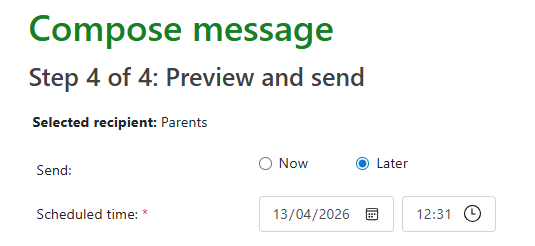
Step 4 now includes the option to set a preferred time to send the communication. Toggling to 'Now' will send the email immediately, or selecting 'Later' allows a time to be set. The date and the time can be set as required.
The message will display in People > Communications > View Messages (Internal or external) and can be edited if unsent. Messages sent in the past cannot be amended. Select the Scheduled tab on the 'View messages' listing page to edit the message content or to reschedule.

To edit system default messages see Changing default message schedules