To enable rich text features for emails sent using templates, the email body input supports Markdown syntax. To aid users in writing Markdown there is a live preview beside the input which shows formatted content, as well as a toolbar of helper buttons.
When using the markdown the approach is easier if the user types uses the formatting as they add the text to the document. If you type the text and highlight to then make bold or italic or bullets.

The toolbar includes:
- Header - opens a dropdown of a few different header types. Clicking a header type inserts an appropriate number of hashes (#) before the cursor, or before the selected text. Must be inserted at the start of a line to be valid.
- Bold - inserts two asterisks (*) either side of the cursor, or either side of the selected text.
- Italics - inserts an underscore (_) either side of the cursor, or either side of the selected text.
- Link button - inserts notation for a hyperlink. If any text is selected then that text becomes the display text for the link. If you click on any of these links, it will open the page in a new tab so you don't lose current progress.
Additional features that can be used in the body of the email template are:
To create a link, enclose the link text in brackets (e.g., [Duck Duck Go]) and then follow it immediately with the URL in parentheses (e.g., (https://duckduckgo.com)).
My favorite search engine is [Duck Duck Go](https://duckduckgo.com).
The rendered output looks like this:
My favorite search engine is Duck Duck Go.
URLs and Email Addresses
To quickly turn a URL or email address into a link, enclose it in angle brackets.
<https://www.markdownguide.org> <fake@example.com>
The rendered output looks like this:
https://www.markdownguide.org
fake@example.com
Tables
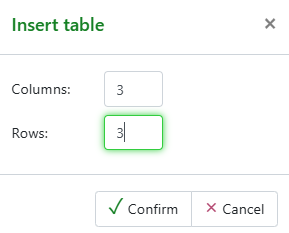
Select the table icon and then choose the size of the table by adding number of rows and columns:
The markdown will add '|' for each column in the table, the user just needs to type between the '| |' as below, note that the second row of markdown is to add the bolder line between the header row:
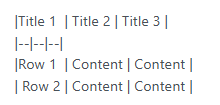
This appears in the preview as:

To edit the table in markdown the user can add '|' to each row to add a new column or type a new line using the same syntax for a new row.
Bullet points
A bulleted list can be added to the email by using the menu options. When adding they appear in markdown as:
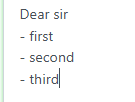
and when previewed:

Numbered bullets appear in markdown as:
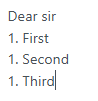
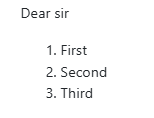
and when previewed: